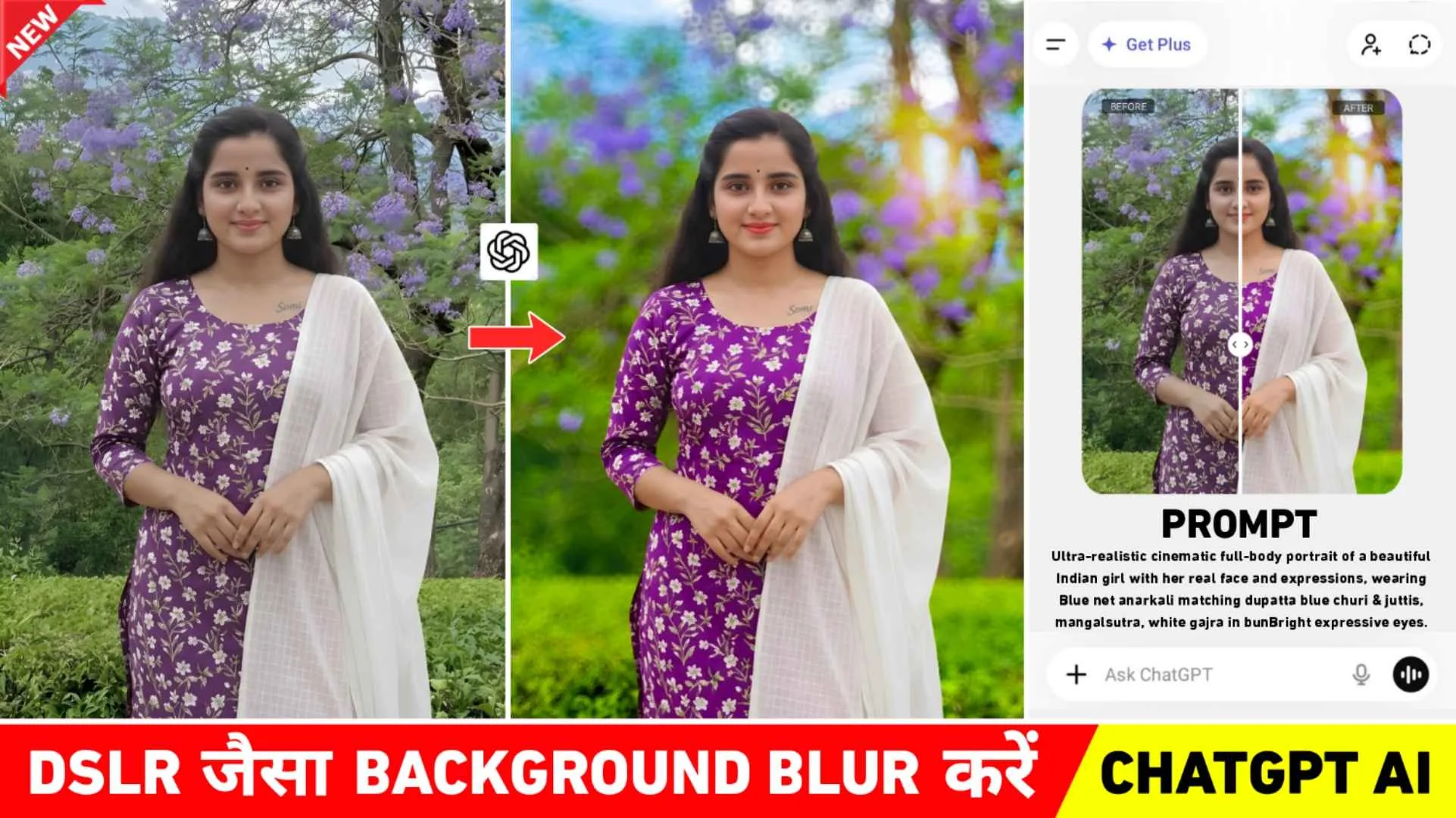
Dslr Background Blur Prompt – In today’s time, who does not like to click, edit and share photos on social media. You see, he buys the most expensive phone to click his good photos. Also edit it with the help of editing app. No matter how expensive a smartphone we buy to click good photos, background blur like in DSLR does not appear in our photos. Often we have seen people using various editing apps like Lightroom to blur the background of their photos. There are Snapseed and many other editing apps with the help of which blur the background of the photo, but it is done in a natural way and done manually. There is a lot of difference between the two. Keeping all these things in mind, we thought that nowadays everyone does any kind of editing using AI, so why not tell us how to blur the background of the photo with the help of AI. In this new article, we are going to share some such prompts using which in Gemini or Chatgpt you can blur the background of any type of photo like DSLR and iPhone.
Chatgpt DSLR Background Blur Photo Editing
If seen, there are many AI tools which people like to make photos. Like grok ai, gemini and chatgpt. But when it comes to blurring the background, chatgpt is giving the best results because we tried blurring the background of our photo with the help of prompt in all the AI tools. Except chatgpt, none of the others showed such good results. Therefore, whenever you want to blur the background of your photo, use chatgpt. Well, we have shared two types of prompts. If you don’t get good results from one, you can try using another. We have also shown a photo without background blur and a photo with background blur in paragraph four, seeing which you can understand how much chatgpt can do on the next level. Do not forget to do color grading of the photo made with chatgpt with Lightroom app, because when I did a little color grading of the photo made with Lightroom app, our photo started looking even more beautiful.
Difference Between From AI And Editing App
To blur the background of any kind of photo with AI, we have to tell it i.e. we have to give a prompt and all the things are shown in it. It automatically detects subjects like hair, hands, clothes and smartly separates them to create natural blur. In the editing app, you have to select all the things yourself as to which area we want to blur. In the editing app, we have to manually select the background with a brush or radial tool so that the same blur is applied on the entire selected area. A few years ago, people used to take the help of Snapseed and Pixart apps to do such editing in which they would first add their photo and then remove their photo with the help of Healing or Remove tool. Then add a photo with Add Tool or Double exposure tool and remove its background and adjust it properly on that photo so that the background of the photo looks like a blur. But now see, just enter a prompt and add a photo, the background of your photo will be blurred in just one click, that too in a professional manner.
DSLR Background Blur Prompt
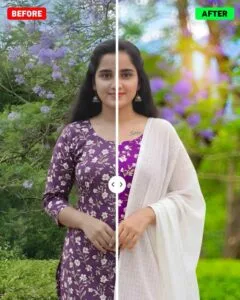
Create A DSLR Background Blur Using Chatgpt
It is very easy to do such editing with chatgpt. If you have to do it from chatgpt website then we have given its link. By clicking on the name Background blur, you can easily do this with your photo by putting a prompt there. If you want to do it through the app, then we explain it step by step.
- Install the ChatGPT app from the Play Store.
- Open the app and log in using your Gmail account.
- You will find a ‘Create Photo’ option there click on it.
- Click on the plus button on the left side, then click on Photos.
- Add your photo from the gallery..
- Paste the prompt you copied from here into the chat box.
- Click the Send button on the right side.
- Wait for approximately one minute.
- In just a short while, your photo will have a DSLR-like background blur.
- Now, click on your photo and click the Save button at the very top.
- It will be saved to your photo gallery.
Color Grade Your Photo Using Lightroom App
If you do color grading of the photo created by chatgpt with Lightroom app, then your photo will look even more beautiful. This is because when I blurred the background of the photo with chatgpt, after that when I looked at that photo, it looked a bit dull, then when I shared it in Lightroom app for color grading and did color grading, the photo started looking completely unique. That’s why my advice would be that whenever you create a photo with chatgpt, then send that photo to Lightroom app and add color to the photo as per your choice. If you want, you can also take help of Lightroom presets. To do it in one click, but every preset is different. You just have to do a little color grading. That’s why I would say to adjust the lighting and also the color manually.
Overall
Earlier people used to use different types of photo editing apps to blur the background in the photo. Now with the help of AI I saw. People do it as per the prompt in just one click. So in this article we have shared the same prompt. We have shared two types of Dslr background blur prompt with the help of which such editing can be done easily. The prompt we have shared can also be used in different types of AI tools. So I hope you liked today’s article very much. If you like it then do share it with your friends and keep visiting our website for similar editing related prompts.