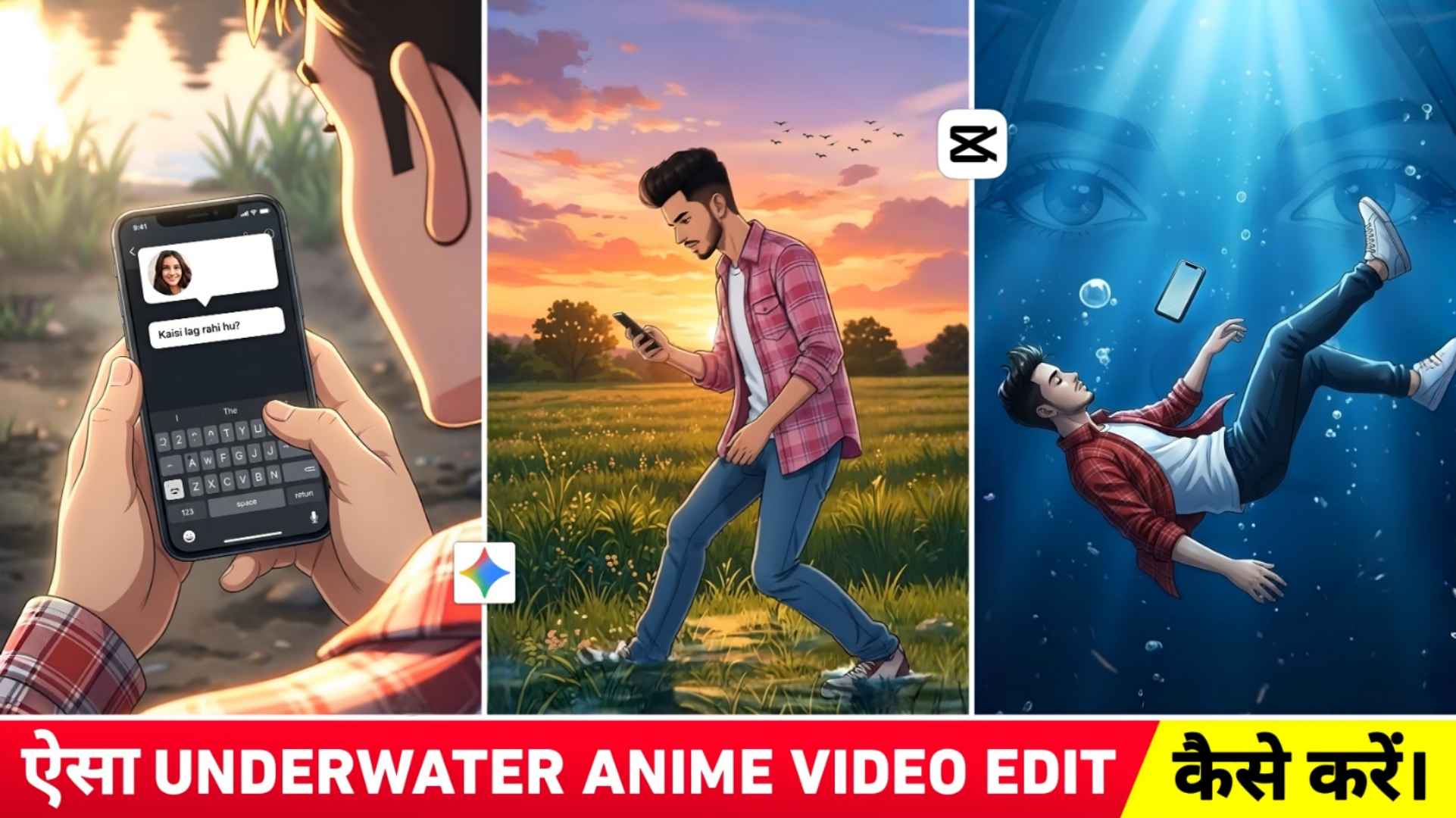
Underwater Anime Video Editing – Again a new type of video made with AI is trending a lot on social media, which is known as underwater anime video. In which people are creating and sharing amazing videos with the help of just one selfie photo. By the way, that video looks just like Pyaar Mohabbat Wali. Which people are creating using Google Gemini and flow AI. Everyone wants to make that kind of video right now. As many brothers as I have seen. Making and posting that kind of video. Everyone’s video has gone viral. Keeping all these things in mind, we thought why don’t I also tell you about making that kind of video. I saw that the biggest role is being played in making that kind of underwater Anime Reels videos. It is a prompt because in this we have to create two or three types of images. Then a video will have to be made from the image. For which we will need different types of prompts, so in this we have shared all types of prompts with you. Along with giving the prompt, we will also tell this.
Complete Guide Underwater Anime Style Ai Video Editing
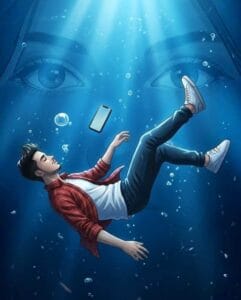
If you use Instagram then you must have seen this in underwater Anime Reels Video. A boy is shown in anime form and has a smartphone in his hand in which he is chatting with a girl. As soon as the girl writes in the chat, how am I looking? Similarly, the girl’s voice also comes and the boy suddenly starts falling on the ground and he slowly goes under the water in the form of animation. The mobile also falls from his hand. A view of the girl’s face is also shown along with her eyes as a slight shadow underwater. The background music used in this is of tere aage fike sare lofi song. To make such a video, first you will have to make three types of photos with Google Gemini: First, with the smartphone in your hand. The second photo is of Anime style digital illustration or AI-generated 2D. Which you can see in our thumbnail. The third photo will be underwater in which you will be seen drowning under water. There will also be a slight shadow of the girl’s face in that photo.
Create Underwater Anime Style Photo Using Gemini
As I already mentioned, to make that kind of underwater video, first we have to make some photos. We also told what kind of photo we have to make. Now in this paragraph we are going to tell you how you can use the prompt given by me with your selfie photo in Google Gemini to create three types of photos. First of all install Gemini app from Google Play Store. To create a photo, login with Gmail and select the Create Image option. Paste the above prompt inside the chat box and upload your selfie photo by clicking on the media option and clicking on the gallery. Click on the send button on the right side and wait for a while. After waiting for some time, your first photo will be ready. If you like the photo, you can save it by clicking on the photo. If you don’t like it, you can try again. Similarly, draw the second picture using the second prompt and draw the third picture in the same manner.
Anime Style Photo Prompts

How To Create Image To Video Using Flow Ai?
Which is the most powerful AI tool in today’s time to create video from images. You must know that Flow AI is there. That’s why I would also like to say that by using Nano Banana 2 i.e. veo3 in flow AI, you can also make a video of the image created by gemini. That’s all that needs to be done. First of all go to flow ai’s website. If you want to go directly then we have given a button named Create Video. By clicking on which you can reach directly. First of all, log in to Flow AI with Gmail. Then, click on the “Create with Flow” option and select “New Project” on the right side. click on Nano banana 2, click on video option and select portrait. Next, click on Start and upload the first photo which is created with a mobile frame. Click on end and upload another photo in Anime style. Then, paste video prompt 1 in the message box and click on the send button. Your first video will be ready shortly.
Underwater Anime Video Editing
Next, click on the start frame and upload the anime style photo; then, by clicking on end, upload the underwater photo, paste the second prompt in the message box, and click on send. Similarly, make both the videos. Now open the video in any video editing app to join it together. After that add the song as per your choice and save the video. Your video will be completely ready.
Conclusion
Overall, in this article, we’ve covered a new type of AI video creation that’s currently trending on social media as underwater anime reels editing. We’ve provided a complete guide on how to create such videos. We’ve also explained the various prompts needed to create such videos. For editing tutorials on this type of reels, visit our YouTube channel. We’ve uploaded a video. Similarly, AI is going on on Instagram. Moreover, keep visiting our website for information related to photo and video editing.